Tagitize
Host Grouping
One of the best ways to have cleaner drawings is by grouping tags of related elements. For instance, one single tag can be used for a cluster of furniture objects of identical types. Your current tag settings may look like this:
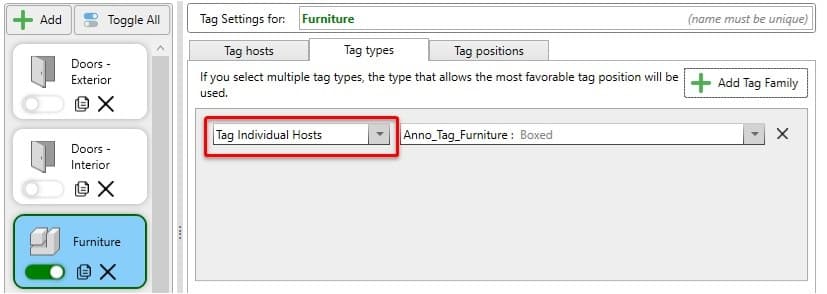
This means Tagitize will create one tag for each element, resulting in this output:
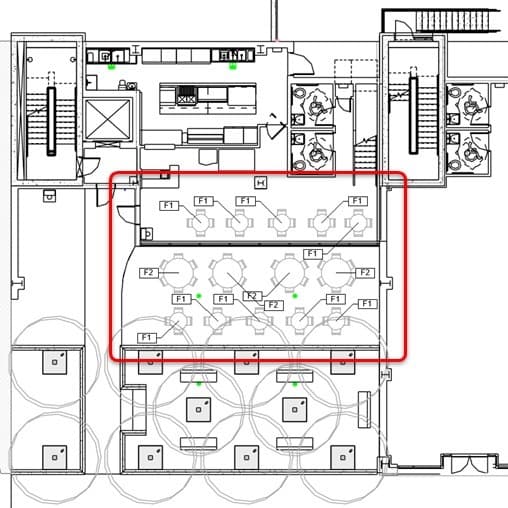
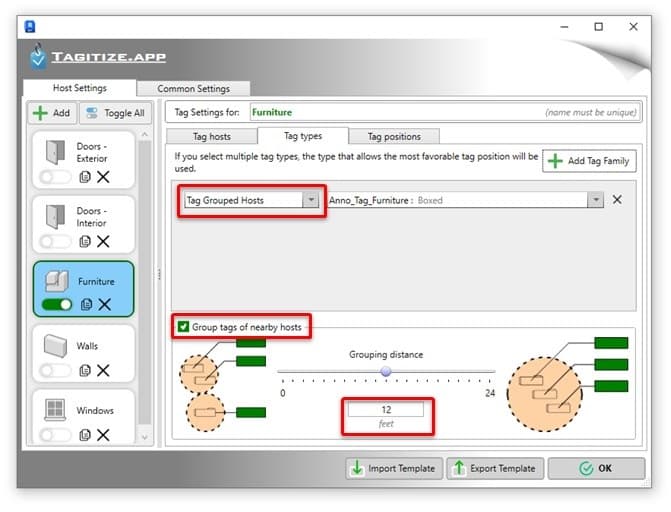
That’s perfectly readable, but let’s try grouping these tags. Let’s tweak the settings for Furniture to the below. That’s telling the app to create one tag for all elements within a radius of 12 feet. If your Revit model is metric, Tagitize will let you input the grouping distance here in millimeters.
Using the new settings will get you something like this:
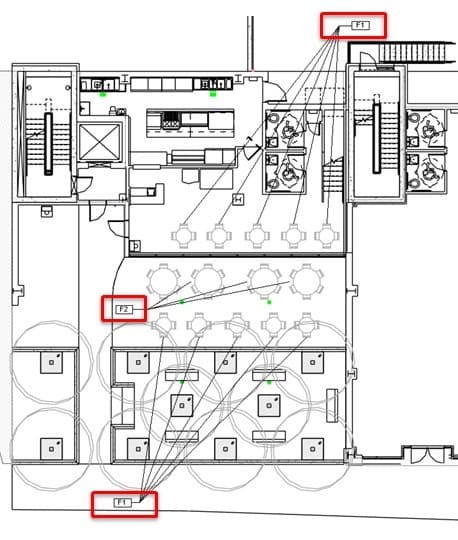
It may come down to personal preferences, but some teams prefer this tagging style to reduce the amount of duplicated information in their tags.
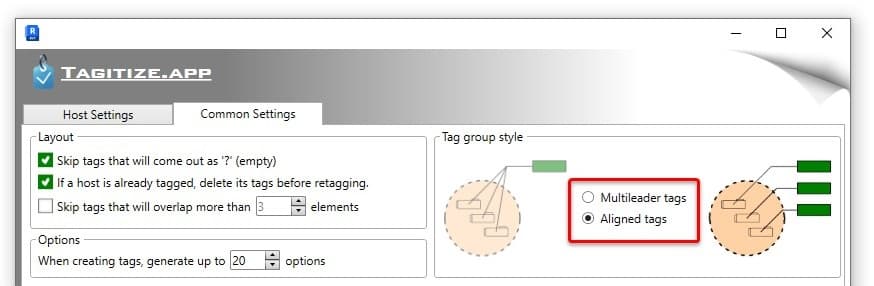
Speaking of personal preferences, some of us want to group tags without merging them into one. Tagitize can do that too! Simply switch to the Common Settings tab and flip the below switch to Aligned Tags:
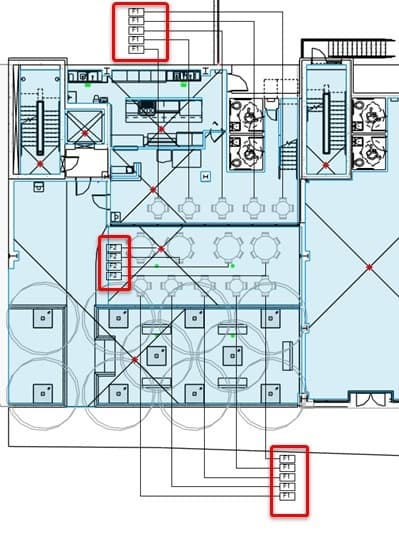
That will give you the best of both worlds:
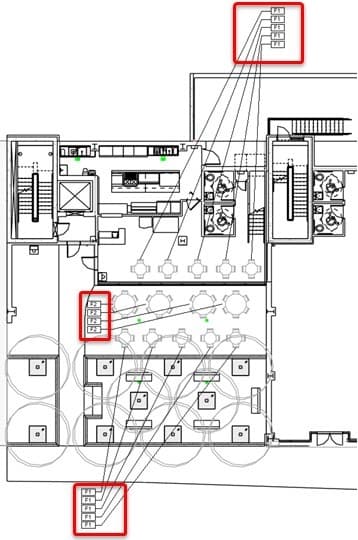
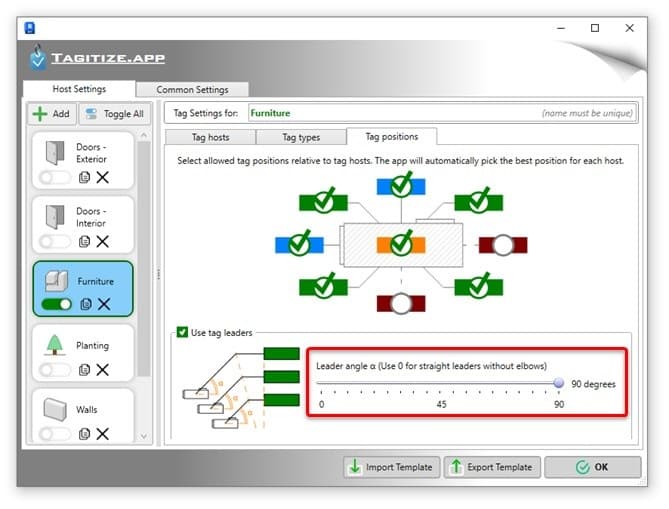
Last but not least, if you set the leader angle to 90 degrees, all grouped tags will also respect that value: