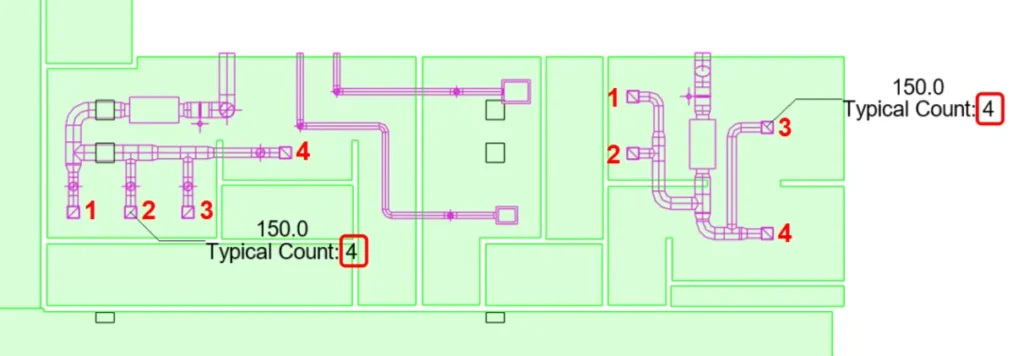
For some disciplines, it’s a common practice to tag identical elements only once using “typical” tags. In the example below, each space has several air terminals of the same family type. Instead of generating 4 air terminal tags for each space, we can configure Tagitize to create only two typical tags:
Here are the settings to achieve that result:
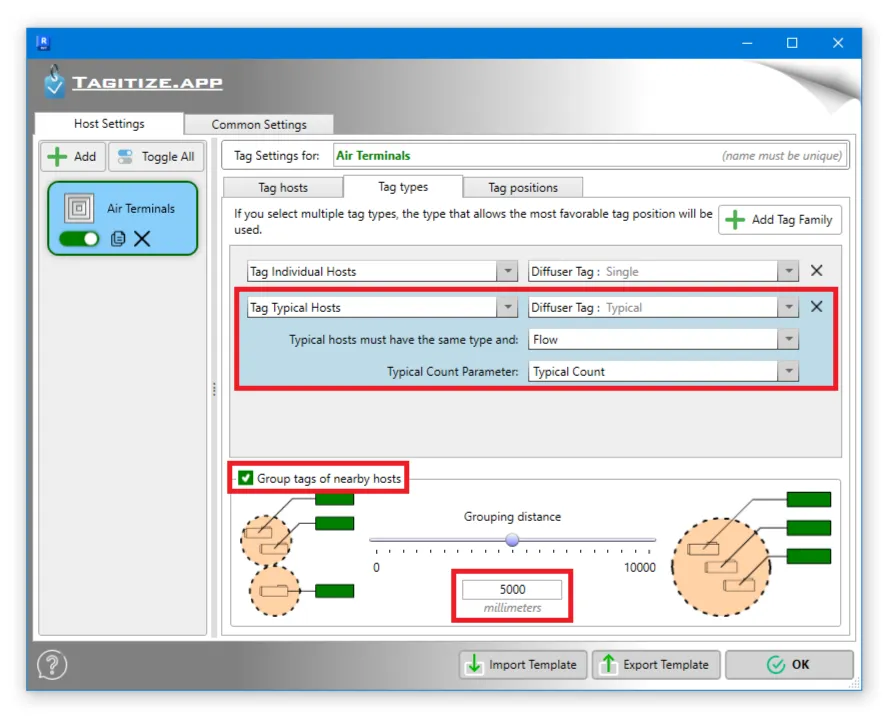
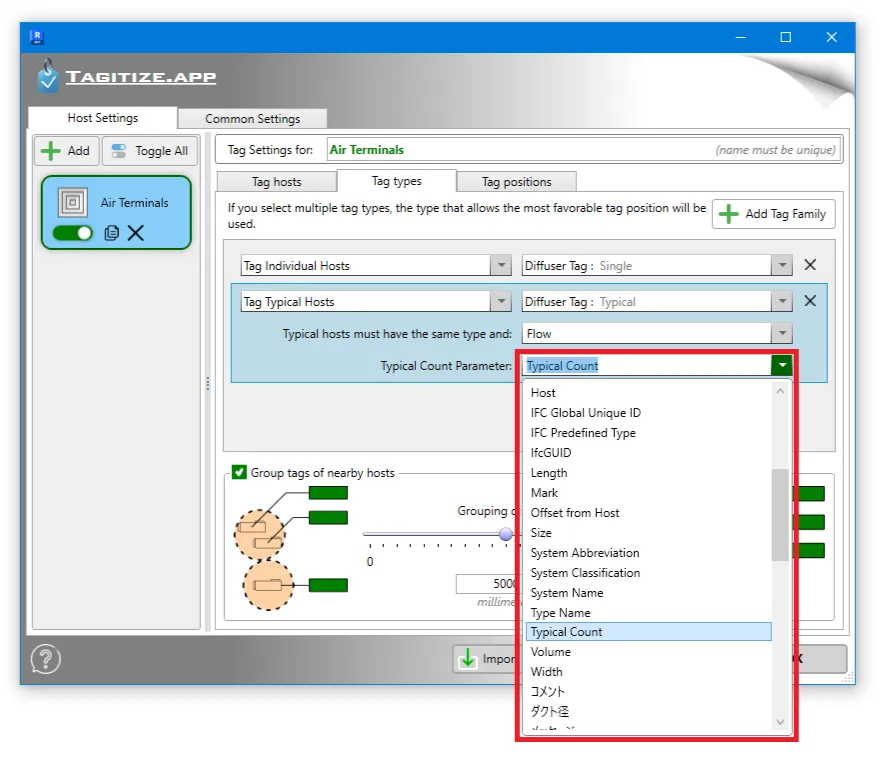
Since we chose to “Tag Typical Hosts”, Tagitize has allowed us to select a Revit parameter to store the number of identical elements each typical tag represents. The “Typical Count” parameter in this example has been added to the project for use here.

Note that this parameter needs to be an Integer parameter. Make sure to add it to both your tag family and to Tagitize settings:
For each typical host group Tagitize detected, it will count the number of members in the group and write that value to the parameter we specified. This enables us to add that same parameter to the air terminal tag family so that the total count shows up as below:
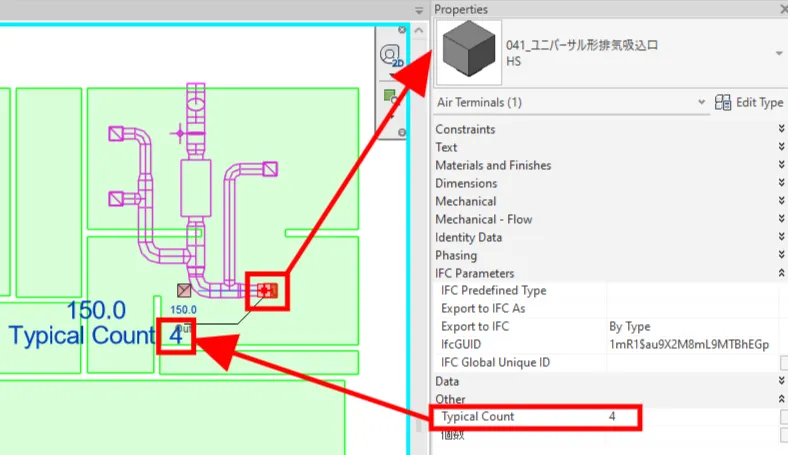
If Tagitize doesn’t group elements as expected, verify if you have set the right parameter for grouping typical hosts. By default, Tagitize always groups typical elements of the same Revit family and type. Optionally, you can specify a parameter to subgroup these elements further. For example, the below settings mean that hosts in the same typical group must have identical family, type, and Flow value.

Just like with other special tag location types, make sure to:
- Still specify a tag type for “Tag Individual Hosts” to allow tagging any element not part of any typical group
- Adjust the grouping distance under Settings as required to have bigger or smaller groups
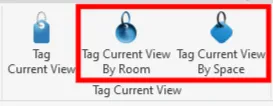
- If you have rooms or spaces in the model, use the “Tag Current View by Room” or “Tag Current View by Space” for better grouping results.