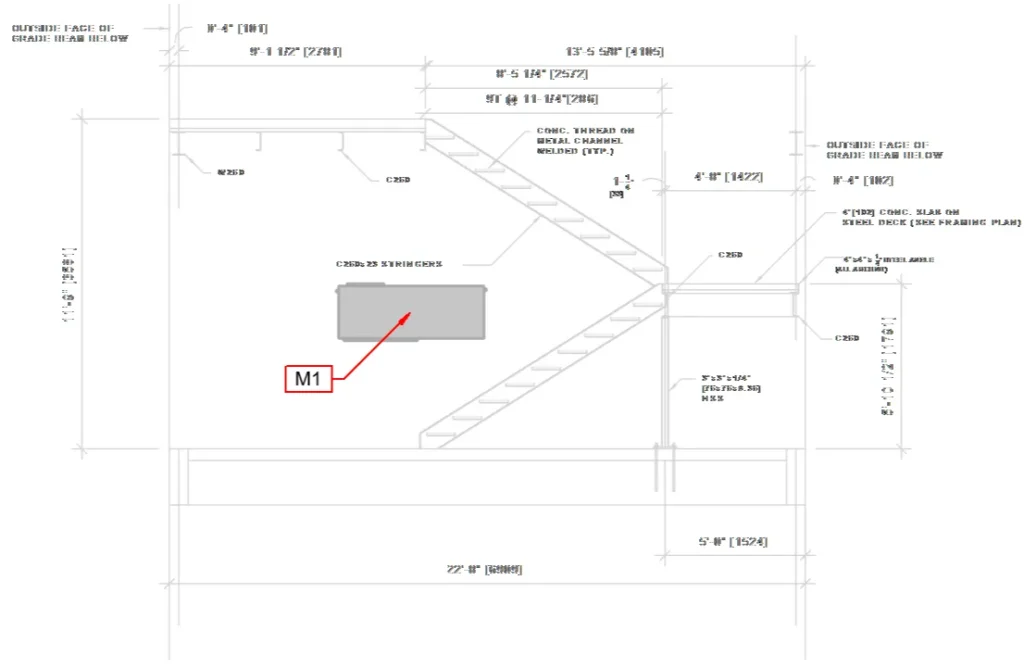
On some projects, it’s necessary to link in CAD data, such as DWG floor plans or DXF detail sections, to then add your BIM information on top. When tagging objects on this BIM layer, we naturally don’t want the new tags to overlap or clash with elements from the CAD background. This is easily achievable with Tagitize.
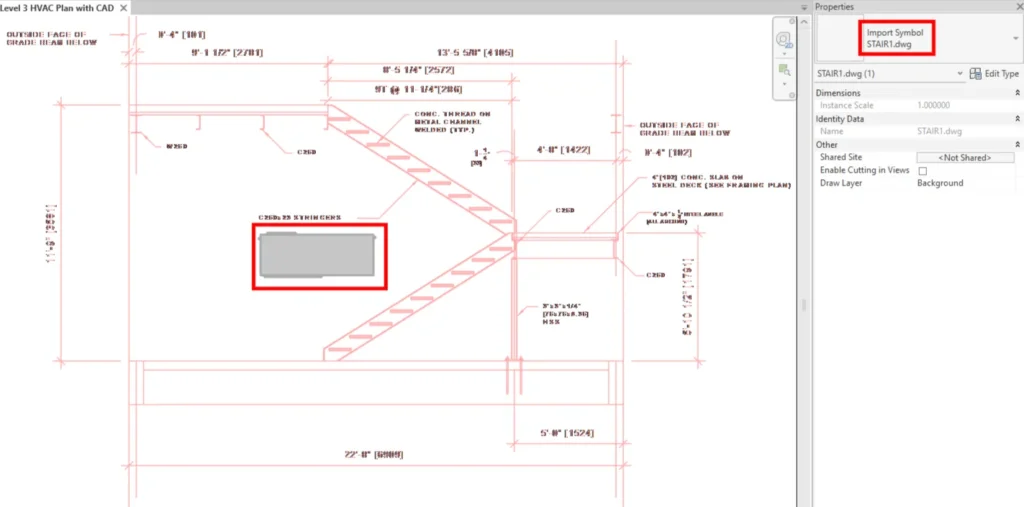
In the example below, we have a stair section coming from a linked DWG in the Revit view. On top of this, we added a Revit element we now want to tag:
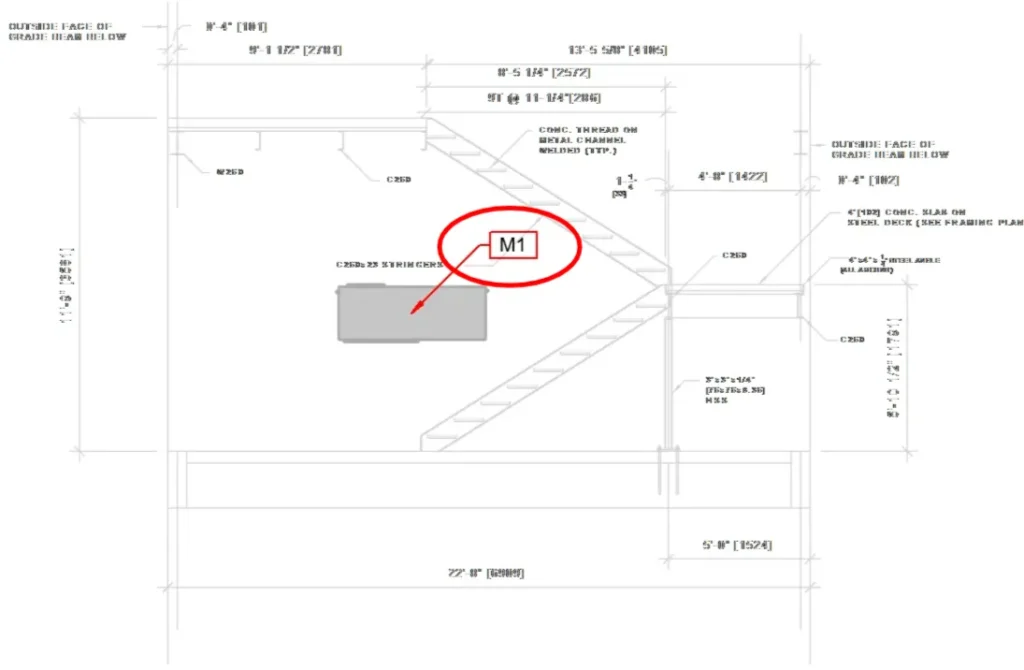
If we tag it now with the default settings, the new tag may clash with the DWG stair:
To keep the DWG background clear, enable this option under Tagitize settings:
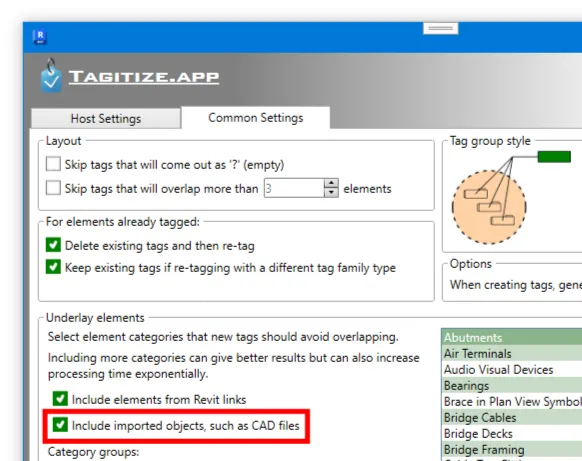
Re-run the tagging command, and the result should be like this: