Tagitize
Tag Grouped Hosts
Tag Groups vs Element Groups
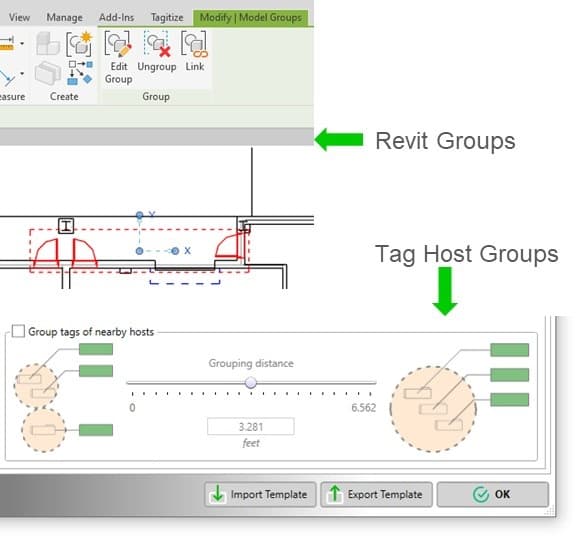
Note that the notion of Tag Host Groups here is different from the concept of element groups in Revit. Tagitize doesn’t see Revit element groups, it does its own grouping of tag hosts based on your preferences, such as by distance as shown below or by rooms/spaces which we will soon discuss in one of the upcoming sections.
Group Point-based Elements
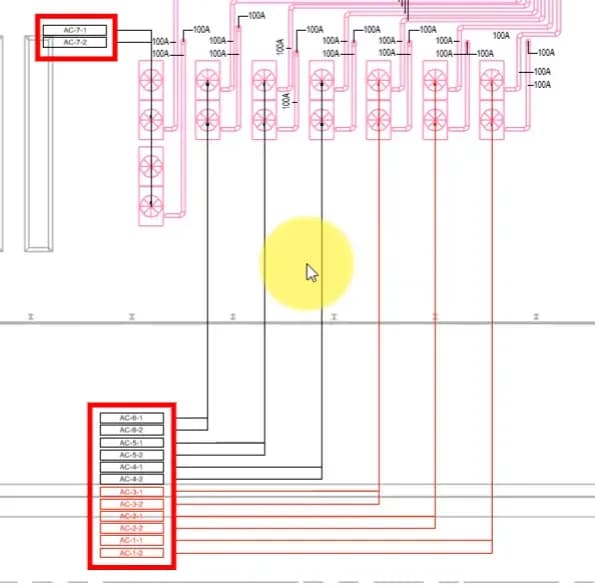
In general, Tagitize can group most point-based and line-based Revit elements. The example below shows tags of grouped mechanical equipment elements:
To achieve this, we can set up the tag category as follows:
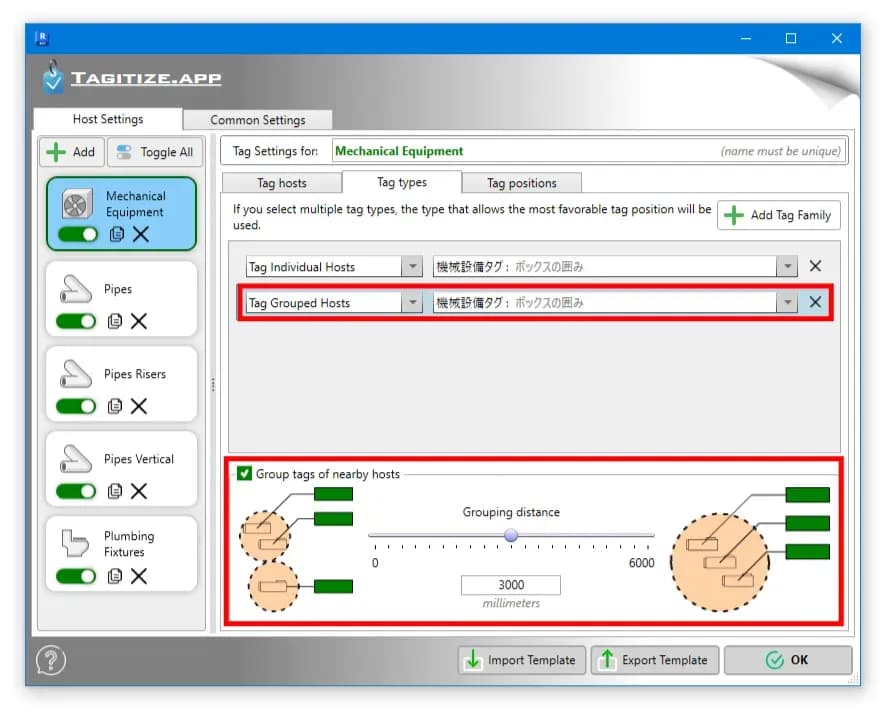
Note that for this to work, the host elements to be grouped need to be of the same family type. If you want smaller tag groups, decrease the grouping distance.
Using a grouping distance too high will make Tagitize put more elements in the same group. The result is a larger group of tags, which can be more difficult to place in a good location, especially in busier views.
If a tag group is so big that placing it would take it beyond the view crop, Tagitize will revert to tagging elements in that group individually. Thus, it’s recommended to still specify a tag type for “Tag Individual Hosts” even if you have done one for “Tag Grouped Hosts”, as shown in the screenshot above.
Group Line-based Objects
To group tags of line-based elements, we can use the same technique. For example, here’s the working setup for pipe tags:
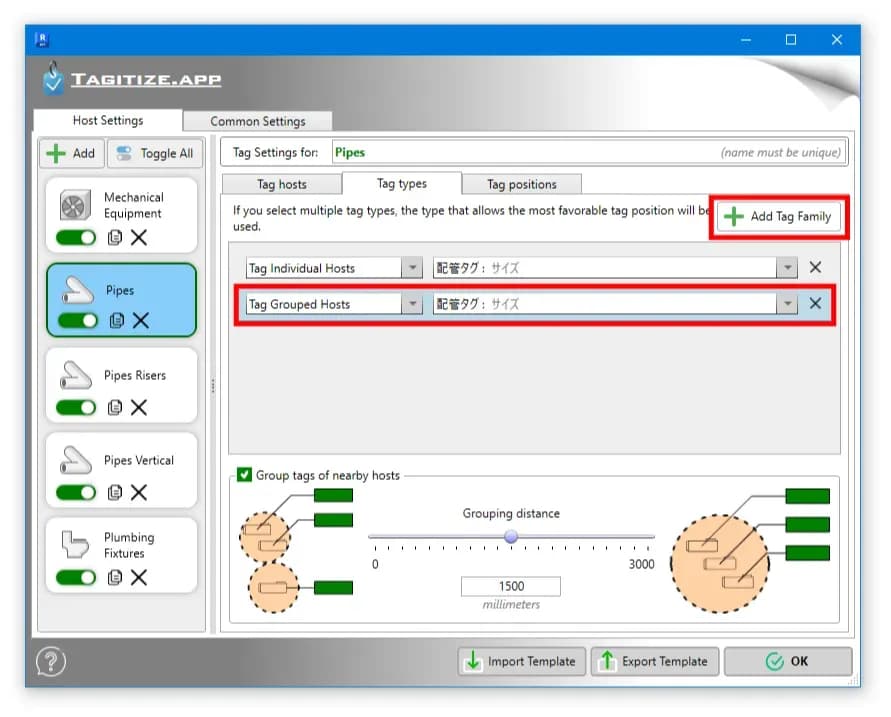
And here’s the tagging result:
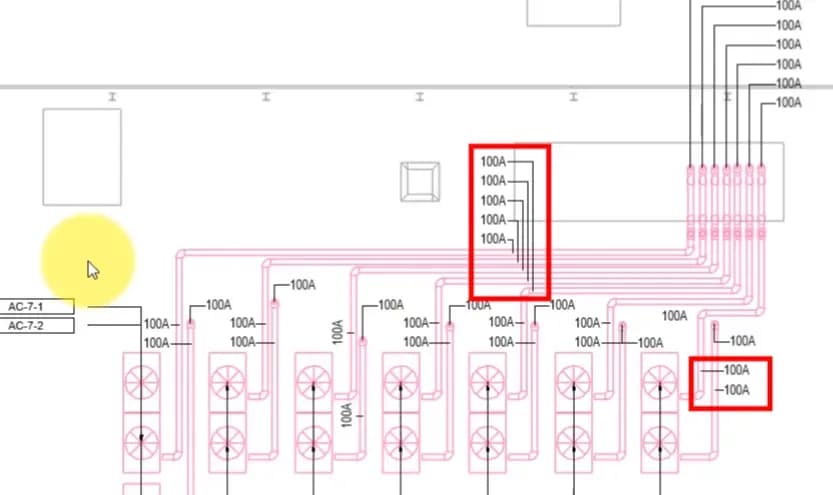
Just like with point-based elements, it’s recommended to still specify a tag type for “Tag Individual Hosts” even if you have done one for “Tag Grouped Hosts”.
Group by Rooms/Spaces
If you run the “Tag Current View” command, Tagitize will only use the grouping distance specified under the Settings window above to group tag hosts. This can often lead to unexpected results, for example, when an element in one room is grouped with elements in the next room.
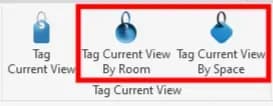
For more predictable grouping, it’s recommended to use the command “Tag Current View By Room” or “Tag Current View By Space” instead, if you want to group tags. These commands will first group elements by rooms or spaces. Then, elements inside the room or space will be clustered into either one common group or several sub-groups based on the grouping distance you specified under your Settings.
For more details on grouping tags by rooms or spaces, see our article here.