 Tagitize
Check Current View
Apart from generating new tags, Tagitize also allows checking existing tags in the view for collisions against other elements and other tags. This works with both existing tags placed by the app and tags created manually.
For an existing tag to be checked, it needs to have a relevant (and enabled) card under Tag Settings. In other words, if the tag would be re-generated if you ran Tagitize’s Tag Current View command, it will be checked by the Check Tags In Current View command.

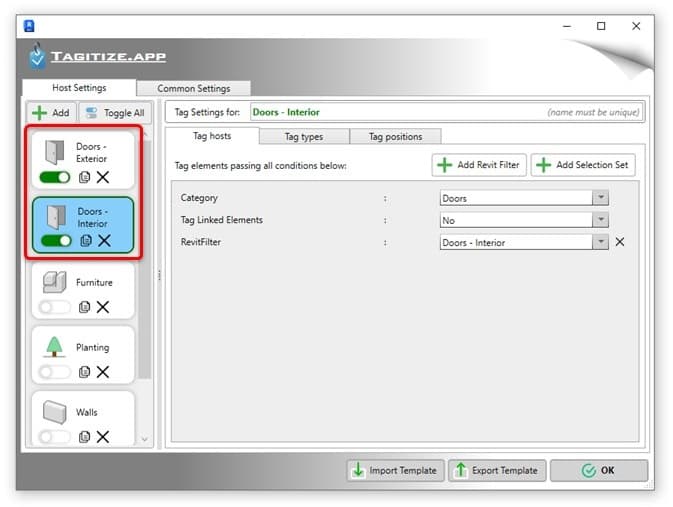
For example, if your settings only have cards enabled for the Doors category:
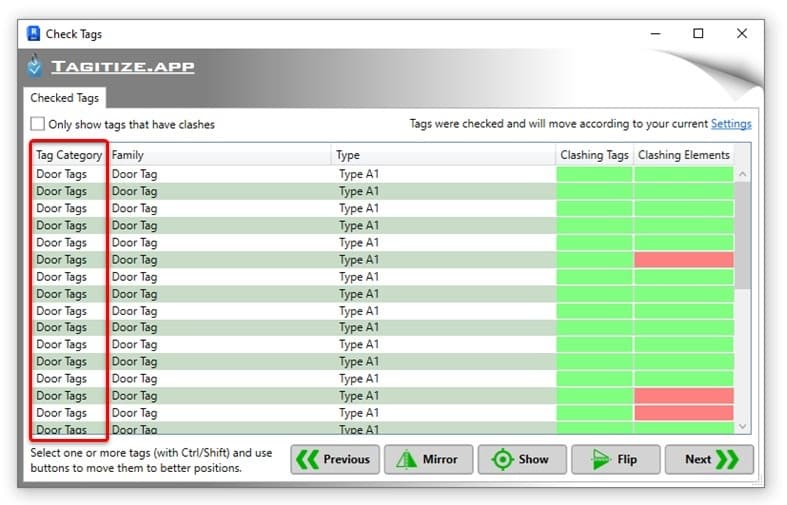
Then the Check Tags In Current View command will only check and report the level of collision for your existing door tags in the view:
To show only tags with collisions, check the “Only show tags that have clashes” box.
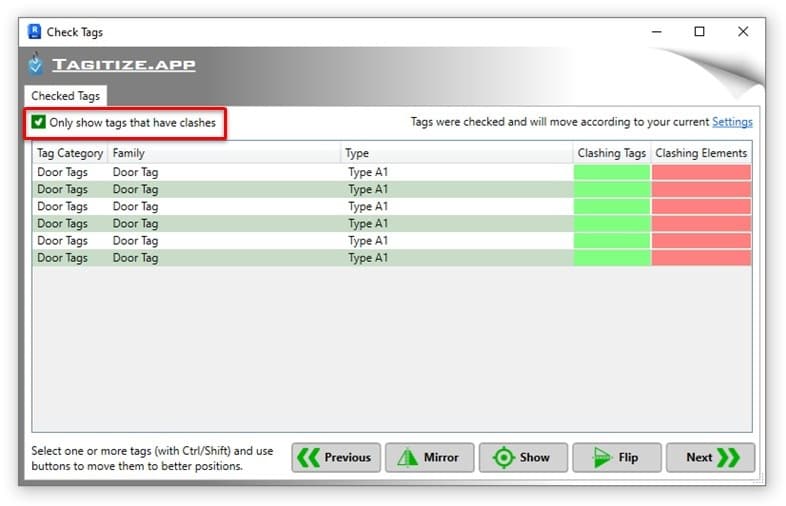
You can then select one or several lines in the report and the app will select these tags in the view. Click Show to see these tags in the view.
Next, use the Mirror and Flip buttons if it’s clear that they can resolve a tag’s overlaps immediately. If you want Tagitize to figure out where to move the tags to resolve collisions, use the Next button. Note that it may take a few runs to arrive at your most preferred tag locations.